
Sort Feed help center
Everything about how to use Sort Feed, in one place: the five-step quick start below gets you from install to your first sorted feed — outlier scores and all — in about 2 minutes, and the guides underneath fix the problems that actually come up.
How to use the Sort Feed Chrome extension
Before you start: the extension is Chrome-only (Edge and Brave usually work too), covers Instagram, TikTok, YouTube and Facebook Reels, and the free plan reads the latest 25 posts of any feed — no account, no card.
-
1
Install and open a supported site
Add the extension from the Chrome Web Store (free, no account), then open Instagram, TikTok, YouTube or Facebook. Click the Sort Feed icon in your toolbar — it works on profiles, search pages, collections and saved lists.
-
2
Click sort and pick how to rank
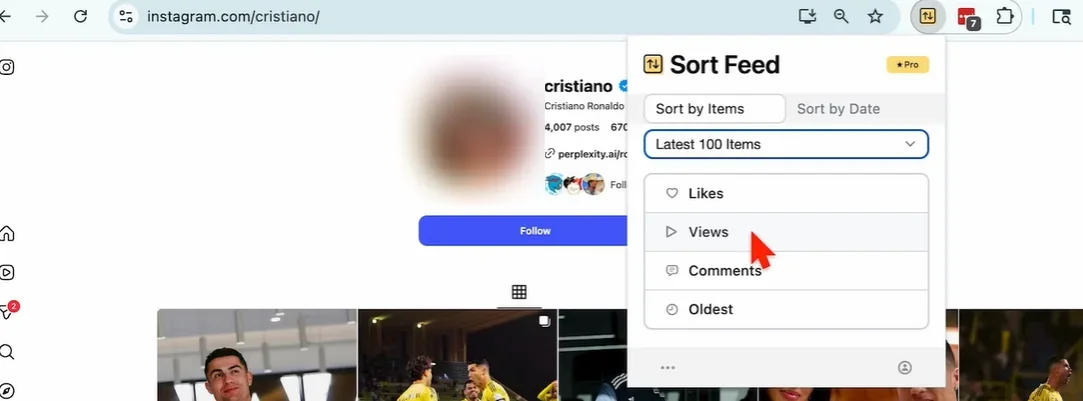
The panel has two tabs — Sort by Items (likes, views, comments) and Sort by Date — plus a range selector: the latest posts on Free, custom counts or date ranges on Pro. Pick one and the grid reorders in place.
-
3
Read the outlier scores
Whichever metric you ranked by, judge each post against the account's own baseline: 1× is its usual performance, anything from about 3× up is a genuine overperformer, and a 10× post is the one to study closely.
-
4
Export, download or transcribe
Send the ranked list to Google Sheets, Excel, CSV or JSON; bulk-download the winners; on Pro, transcribe up to 500 minutes a month into text you can search.
-
5
Adjust the range (Pro)
Custom date ranges and post counts unlock with the Pro plan — useful when you want an account's full history rather than its recent week.
Fix guides
Concrete problems, concrete fixes — each guide starts with the answer, then the steps.
Sort Feed Extension Not Working? 6 Fixes in Order
Sort Feed extension not working or the button missing? Six fixes ordered by success rate — refresh, update, permissions, conflicts — most take a minute.
Read the fix →Sort Feed License Key: Activate, Recover, Move Devices
Where your Sort Feed license key lives, how to activate Pro after buying, how to recover the key from Lemon Squeezy, and why free key sites are a scam.
Read the fix →Sort Feed on Firefox, Edge, Safari or Mobile: Support Map
Sort Feed is built for Chrome. Here's the real support map — Edge and Brave mostly work, Firefox and Safari don't, and no Android APK or iOS app exists.
Read the fix →Still stuck after the guides? The developer answers support personally at taher@sortfeed.com — or unlock the full research range with Pro.
Unlock Pro ranges opens the Sort Feed site through our partner link, in a new tab